Why choosing photos takes the longest
A one-week trip easily produces 300 to 500 photos, many of them near-duplicates. The trick is to cut hard: one photo per moment, and only the ones that tell the story. Favoriting as you go, on the day itself, makes this ten minutes instead of an evening.
Useful Photos app tricks:
- Search by place. Type the city name in the Search tab to see photos taken there.
- Use Memories and Trips. The Photos app groups some trips automatically; open one and you have a ready-made selection to trim.
- Select by dragging. In an album, tap Select and drag across rows to select many photos at once.
Doing the layout by hand
Print photos in two or three sizes: 4×6 for the main shots, 3×4 or 2×3 for the rest, and arrange them on the page before gluing anything. Take a phone photo of each arrangement so you can rebuild it after a coffee break.
Doing the layout in an app
General design apps give you a blank page and templates, and you drag each photo into place. Scrapbook-specific apps fill a layout for you. Either way, export each page as a PDF or a full-resolution image at the album’s size so the print isn’t blurry.
The fast route
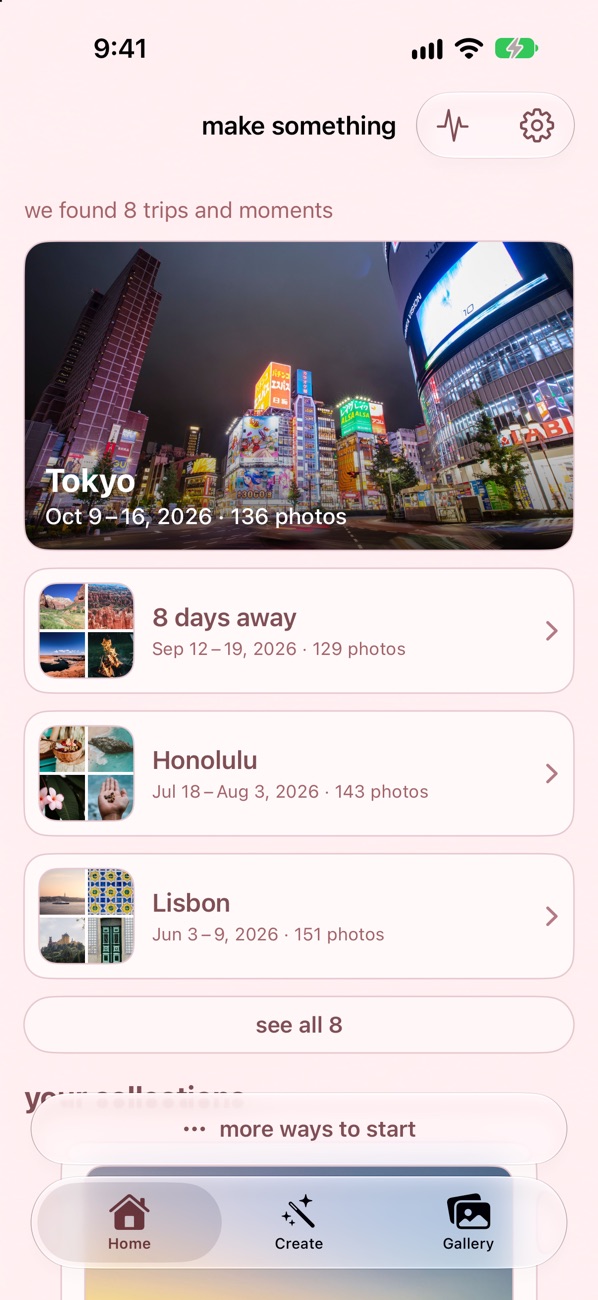
In YearPics, the Home screen lists trips and moments it found on your iPhone from your photos’ dates and places. Tap one, choose Scrapbook, and a full page is laid out with your photos plus a ticket, film strips, stamps and a journaling card. You can add a page per place, day, week or month, then print. Your photos are not uploaded; everything happens on the phone.